What Is Filmora? Timeline Editing, Captions, and Plans
Filmora is a desktop video editor with timeline editing, speech-to-caption tools, and AI shot generation. This guide covers what the official pages say, and where to check plans.
This article contains affiliate links.
Checked 2026-11-06 (Fri, Asia/Tokyo) against Filmora’s official homepage and pricing page. This is not a hands-on test. Prices and plan details change; confirm them on the pricing page before you buy.
Affiliate disclosure. Some buttons in this article are affiliate links. If you sign up or buy through them, TOOLPORT may earn a commission at no extra cost to you. The commission does not change the description. Wondershare sells the subscription or license, not TOOLPORT.
Introduction
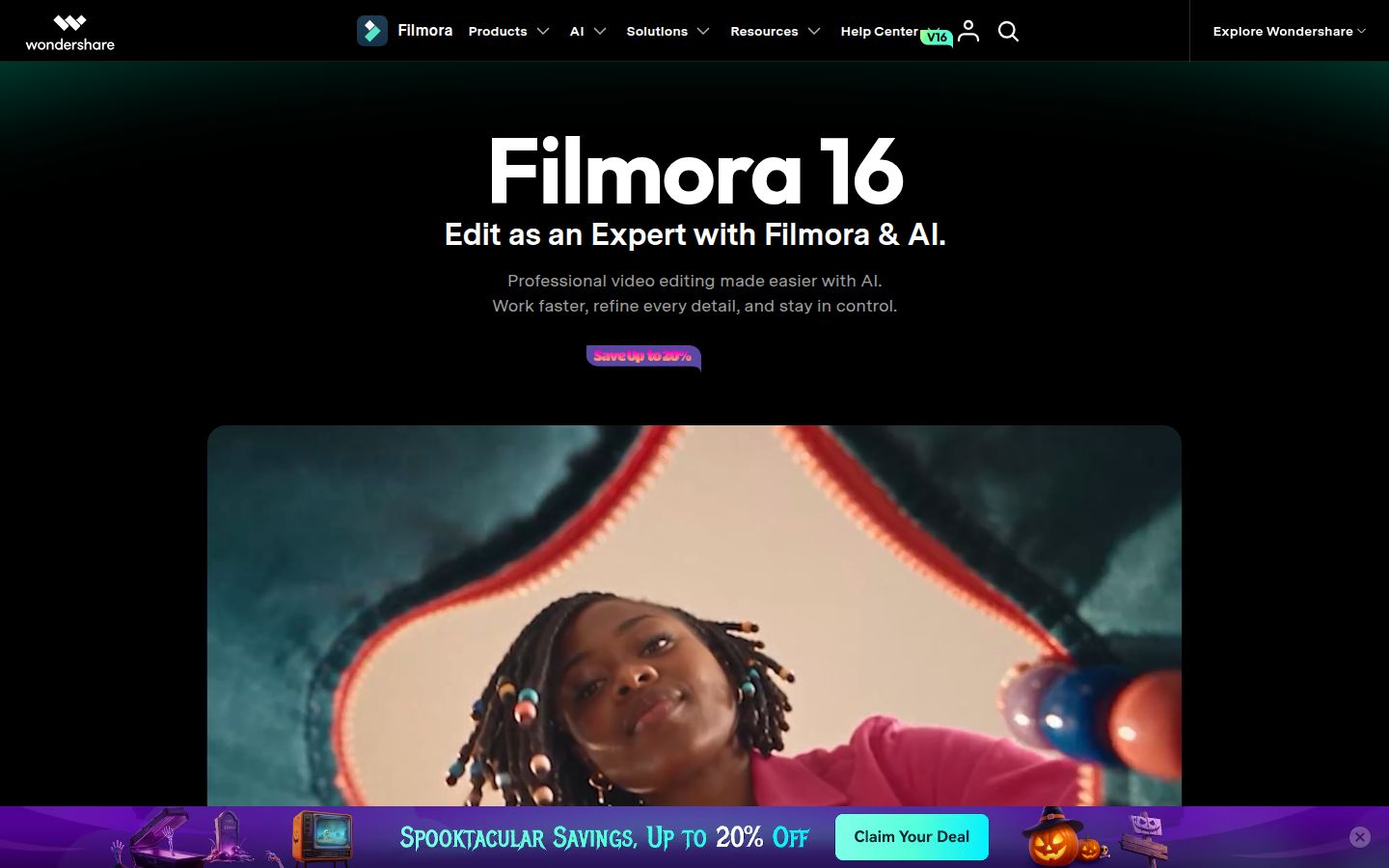
Filmora is video editing software. The homepage FAQ describes Filmora 16 as a desktop editor that keeps timeline editing, AI video analysis, color grading, captions, audio tools, recording, AI generation, creative assets, and export in one workflow. Desktop apps are for Windows and macOS. Apps are also listed for iOS, iPadOS, and Android.
A short first project is enough to see whether it fits: import a clip, cut it on the timeline, add captions from the speech, and export. You do not need every AI tool on the first pass.
What the official pages describe
Timeline editing: The homepage describes rough cuts and finer motion work, including removing pauses, editing from text, trimming clips, keyframes, and camera tracking. The pricing comparison also lists timeline editing, a magnetic timeline, multi-camera editing, and keyframe animation.
Captions from speech: The homepage says Filmora can turn speech into captions you review and style, on subtitle tracks. The pricing comparison lists Speech-to-Text among the AI tools. The pricing FAQ lists Speech-to-Text in 27 languages, including English, Japanese, Korean, Spanish, and Portuguese. That list is a provider claim; check the current FAQ before you rely on a language.
A shot you do not have: The homepage says you can generate video from text, images, or audio, extend clips with AI Extend, and keep editing on the timeline. The pricing comparison marks AI Text-to-Video, Image to Video, and Audio to Video as paid by AI credits. Those tools are not the same as ordinary timeline cuts. This guide does not claim that AI Extend and the comparison’s Video Extend are the same feature.
Free export and the watermark: The homepage FAQ says you can try the editing tools for free, and that videos exported from the free version include a Filmora watermark. Paid plans remove the watermark. The pricing FAQ says basic editing can be used for free, with watermarks on exported files, and that cloud storage and the full creative-asset library require a paid plan.
Plans
Official pricing is the Filmora shop. Figures below are the Individuals / Annual cards shown on 2026-11-06 after Continue on Win (Team & Business and Education omitted). Discount badges mean the billed amount may differ at checkout.
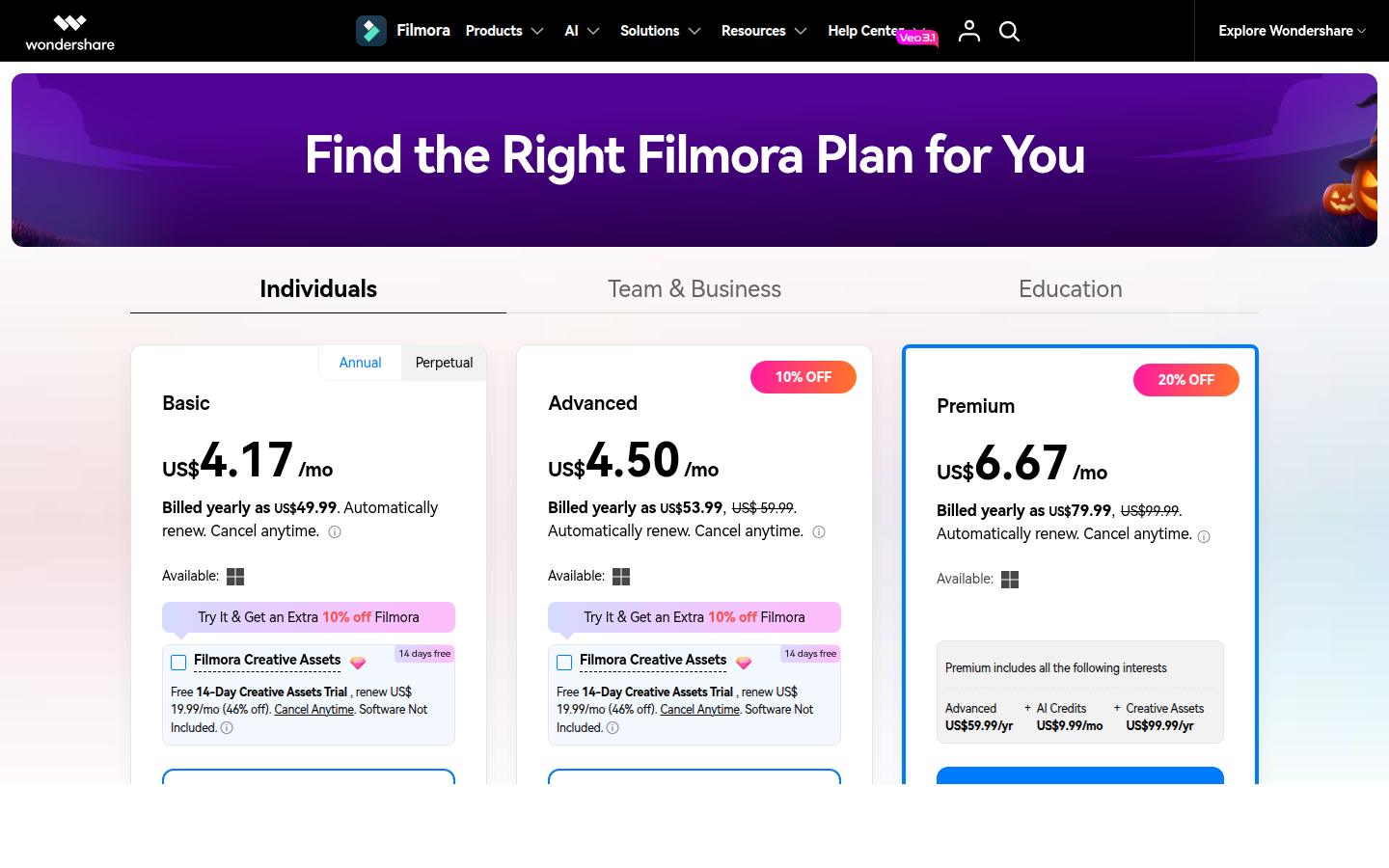
Plan | Billed amount shown | AI credits shown | Cloud and updates |
|---|---|---|---|
Basic | US$49.99/yr (US$4.17/mo) | None | 1 GB, ongoing upgrades |
Advanced | US$53.99/yr (US$4.50/mo; US$59.99 also shown) | 1,000/mo | 10 GB, ongoing upgrades. Includes Basic |
Premium | US$79.99/yr (US$6.67/mo; US$99.99 also shown) | 2,000/mo | 100 GB, ongoing upgrades. Includes Basic |
Perpetual | US$79.99 one-time | 1,000 one-time | 1 GB, Filmora 16 updates only |
Advanced and Premium showed a second dollar figure plus 10% OFF / 20% OFF badges. The Creative Assets trial is separate (renews US$19.99/mo, software not included)—do not add it unless you select it. Paid cards list watermark-free export, 4K, and 500 free AI Mate chats. Free and Basic show no AI credits.
Premium lists Advanced US$59.99/yr, AI Credits US$9.99/mo, and Creative Assets US$99.99/yr as included. This guide does not treat those as extras on top of US$79.99/yr.
FAQ: Basic and Advanced are single-user; simultaneous multi-user needs Business Plan. Perpetual covers that major version and ties to OS. Subscription Basic/Advanced works on both Win and Mac. A 30-day refund is mentioned.
A short first project
These steps follow the homepage. Button names inside the app were not checked.
- Download: Get Filmora for Windows or macOS from the official homepage, or open the iOS, iPadOS, or Android app.
- Footage: Import a clip, or record screen, camera, and audio. The homepage says each recorded source stays available to edit on its own.
- Cut: Trim clips, remove pauses, and edit from text on the timeline.
- Captions: Turn speech into captions, review them, and style them on subtitle tracks.
- Export: The free version adds a Filmora watermark. Paid plans remove it.
If a label in the app does not match this list, follow the screen.
Who it fits
Official positioning
- The homepage groups the product around YouTube and social videos, business and marketing, education and training, and AI-assisted stories.
- The FAQ says Filmora is meant to make professional editing tools easier for beginners, with a timeline that also supports deeper edits.
- It fits when you want timeline cuts, captions from speech, and generated shots in the same desktop workflow.
Check this before you subscribe
- Free exports include a Filmora watermark. Watermark-free export is a paid-plan item.
- The comparison table shows no AI credits on Free or Basic. Many generative tools, including Speech-to-Text and Text-to-Video, are marked paid by AI credits.
- Basic and Advanced are single-user. The FAQ points multi-user access to the Business Plan.
- A perpetual plan stays on one major version and is tied to Windows or Mac. Subscription plans include updates and upgrades while the subscription lasts.
- The homepage FAQ splits commercial use of resources. Items it labels commercially available can be used commercially. It says AI image, stickers, text to video, and AI-generated sound effects are for non-commercial use. Read that FAQ before a client job.
What this guide does not rank
Filmora’s pages describe a timeline editor that can also generate or extend a shot and then keep editing. They do not publish a comparison with other editors, so this guide does not rank Filmora against them. Open the pricing page for the plan, the watermark rule, and the AI-credit rule before you pay.
Sources
- https://filmora.wondershare.com/ (homepage, including the Filmora FAQ), retrieved 2026-11-06
- https://filmora.wondershare.com/shop/buy/buy-video-editor.html (pricing cards and plan FAQ), retrieved 2026-11-06
- https://filmora.wondershare.com/plan/ returned 404 on 2026-11-06